Settings has a section for each part, chosen on the left (a row at the top on a phone). Each card has its own Save button and says when there are unsaved changes. The gear in the top bar opens it.
- Your profile: your name, photo and language.
- Modules (owners): the parts of PitwallWP your agency uses (see below).
- Branding: your agency’s name, website, colours and logo, with a preview of the client report; also a favicon and an app icon (see below), and your social profiles (Instagram, Facebook, LinkedIn, X, YouTube, TikTok, WhatsApp, Pinterest, Behance), shown at the foot of client pages, the client area, status pages and reports, and in report emails.
- Client emails (owners): the monthly report, the client area sign-in code and the approval request, in your words and in each language, with a live preview. Words in braces, like {name} or {month}, are filled in for each email; an empty field keeps PitwallWP’s words.
- Maintenance screens: the default design of your sites’ maintenance and coming soon pages.
- Client pages (owners): the plan your clients see on their owner’s manual: its name, price, what it includes and how to reach you.
- Client reports: what the monthly report shows, and how report emails are sent: which site sends them, the reply-to address and the sender name.
- Alerts: Telegram alerts, notifications on this device and the morning summary.
- Currency and tax: your agency’s currency, and the tax rate new contracts start with.
- Site links: links shown on all sites, with {domain}, {host}, {url} or {name} filled in per site.
- PitwallWP Connect: which version your sites run, and the plugin to download for a new site.
With PitwallWP’s own sign-in there are also Plan, Team and Your account. Keys for services are on the Integrations page.
Modules: only what you use
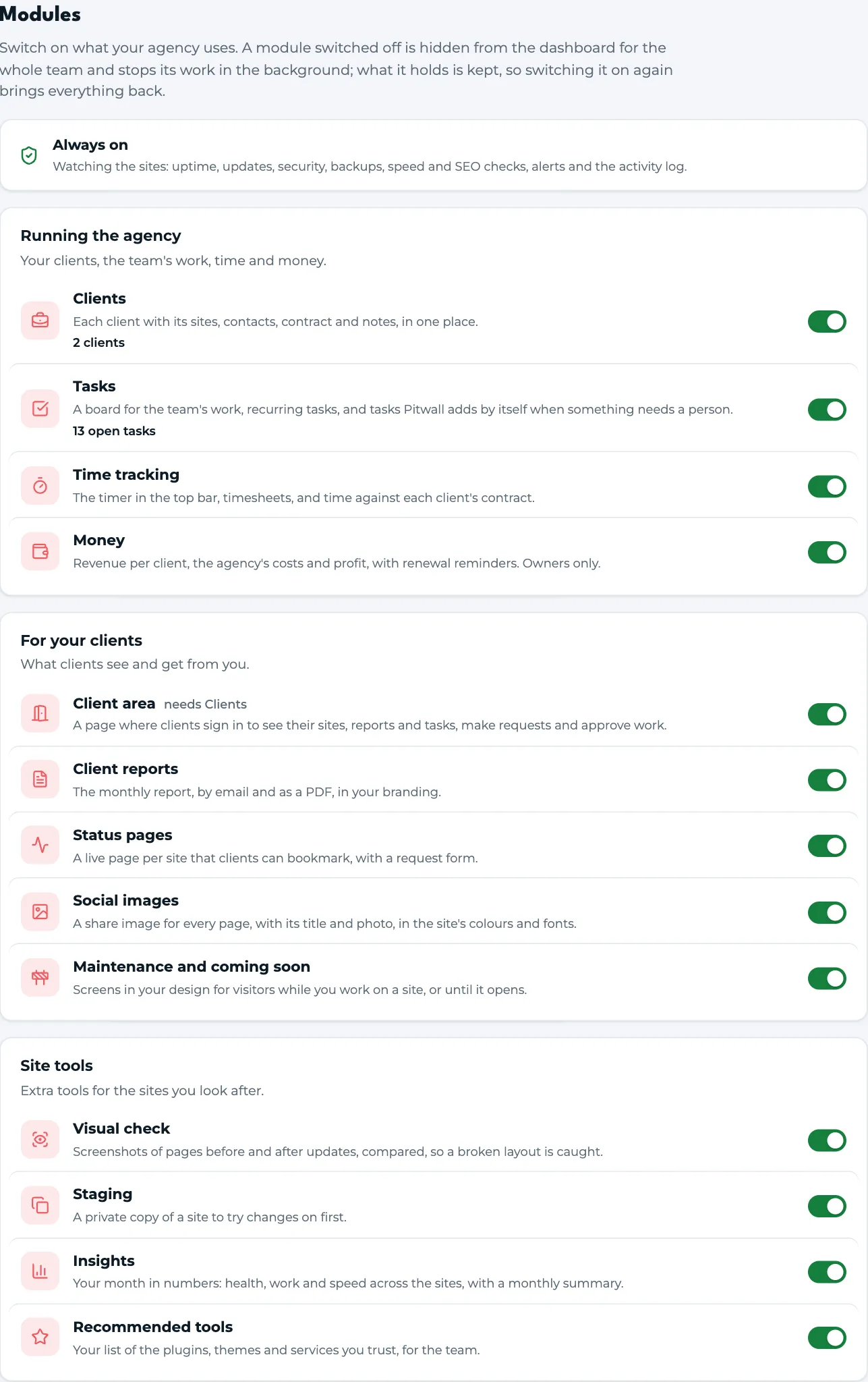
PitwallWP does a lot, and not every agency needs all of it. In Modules an owner switches on what the agency uses, in three groups: Running the agency (Clients, Tasks, Time tracking, Money), For your clients (Client area, Client reports, Status pages, Social images, Maintenance and coming soon) and Site tools (Website checklist, Visual check, Staging, Insights, Recommended tools). Watching the sites (uptime, updates, security, backups, speed and SEO checks, alerts) is always on.
- A module switched off is hidden for the whole team: its page, its menu item, its cards in the site panel and its options elsewhere.
- Its work stops: no recurring or automatic tasks, no renewal reminders, no monthly report emails, no visual check screenshots, no monthly insights. Its public pages close: status page links and the client area stop answering.
- What it holds is kept: switch it on again and everything is back as it was.
- Each row says what is in use. Switching off something live asks first: social images are switched off on the sites that use them, and a maintenance or coming soon screen that is on must be taken off its site first, so an unfinished site never shows by surprise.
- The Client area needs Clients: switching Clients off takes the client area with it, and switching the client area on brings Clients back.
- Everything starts on.
Branding: favicon and app icon
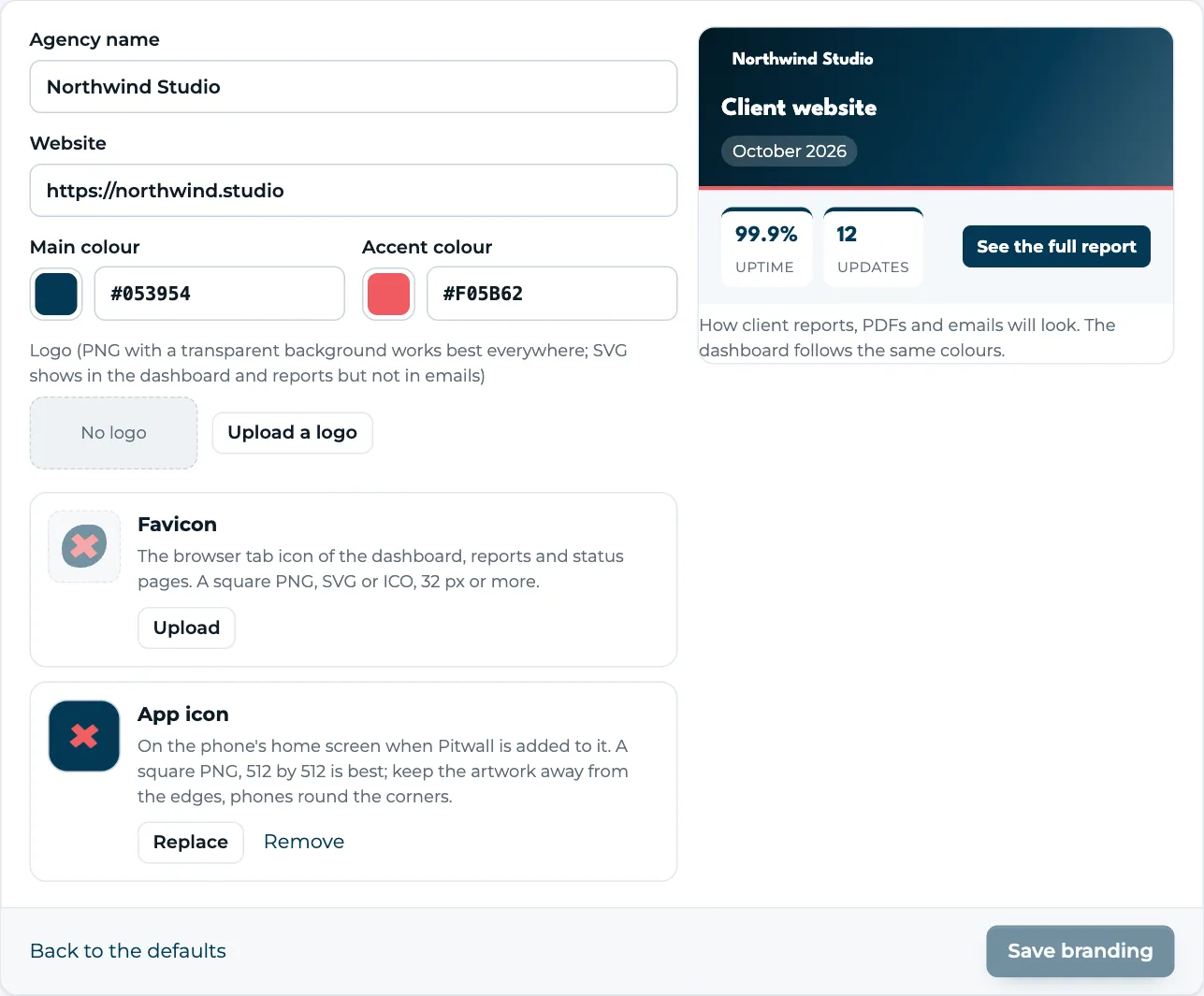
Favicon: the small icon in the browser tab, for the dashboard, client reports and status pages. A square PNG, SVG or ICO of 32 pixels or more. App icon: the icon on a phone’s home screen when PitwallWP is added to it, a square PNG (512 by 512 is best, 192 at least). Keep the artwork away from the edges: phones round the corners. A phone keeps the icon it had when PitwallWP was added, so add it again to see a new one. Without them, the dashboard shows PitwallWP’s icons and client pages show none.