In a site’s Security tab, WP admin changes what people see and can do in that site’s own WordPress admin. Each switch is per site; it needs PitwallWP Connect 0.28.0.
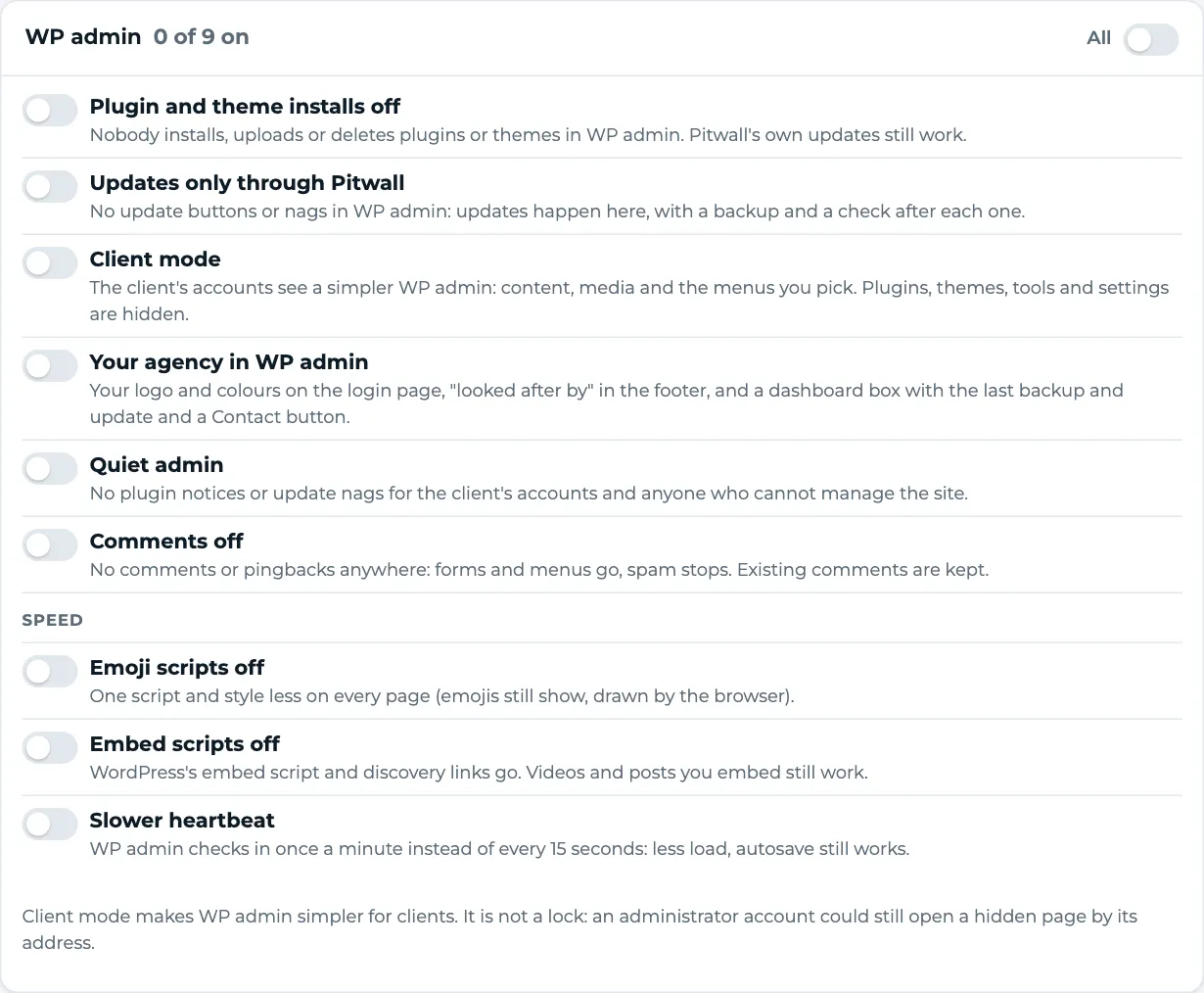
- Plugin and theme installs off: nobody installs, uploads or deletes plugins or themes there. PitwallWP’s own updates still work. Allow installs for 1 hour opens it for a moment; it closes again on its own.
- Updates only through PitwallWP: no update buttons or nags in WP admin, so every update gets PitwallWP’s backup and check.
- Client mode: tick the client’s accounts. They see the dashboard, posts, pages, media and their profile, plus the menus you pick (Orders, Forms and so on). Plugins, themes, tools, users and settings are hidden, and their screens send them back to the dashboard. It makes WP admin simpler; it is not a lock.
- Your agency in WP admin: your logo and colours on the login page, a looked-after-by line in the footer, and a dashboard box with the last backup and updates and a Contact button. It uses Settings, Branding; change it there and the sites follow. The Contact button uses the reply-to address of Report emails.
- Quiet admin: no plugin notices or update nags for the client’s accounts.
- Comments off: no comment forms or pingbacks anywhere. Existing comments are kept and come back if you switch it off.
- Speed: emoji scripts off, embed scripts off, and a slower WP admin heartbeat.
All (top right of the card) turns every switch on or off at once. Client mode stays as it is, because it needs you to pick the client’s accounts first.