
Staff bookings
Book a customer yourself when they call, walk in or send a message.
Taking a booking
- Open Tourbo → New booking, or the New booking button at the top of Tour Bookings.
- Choose the tour. The booking form opens as customers see it, with the same calendar, tickets, extras and pickup zones.
- Pick the date and time, the people and the pickup, and type the customer's name. The email and phone are optional, unless you send a payment link.
- Choose how the booking is paid, then Create booking.
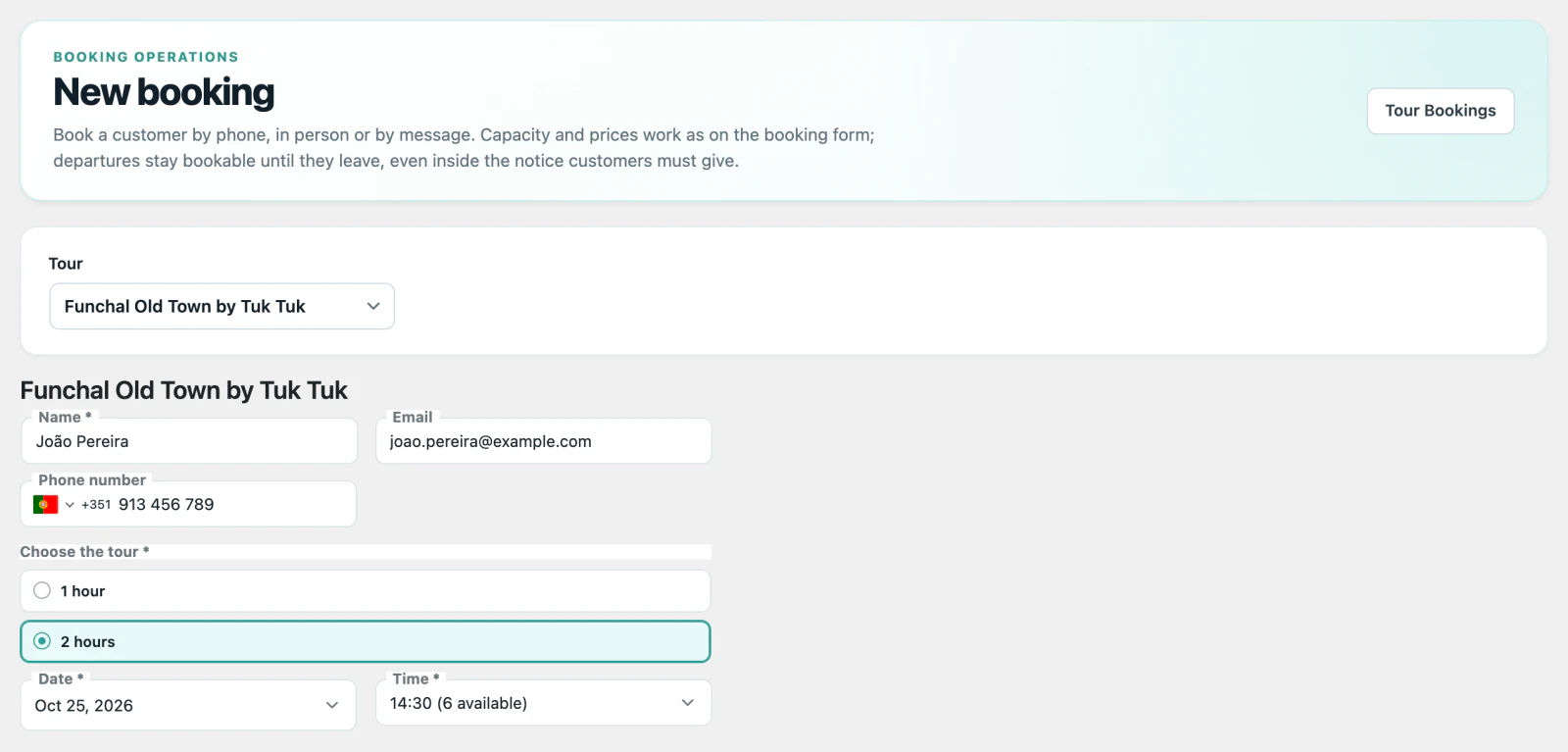
The booking follows the same rules as on your site: capacity, the tour's minimum and maximum people, ticket and extra prices. One difference: departures stay bookable until they leave, even inside the notice customers must give online. A walk-in can join the 10:00 tour at 9:50.
How it is paid
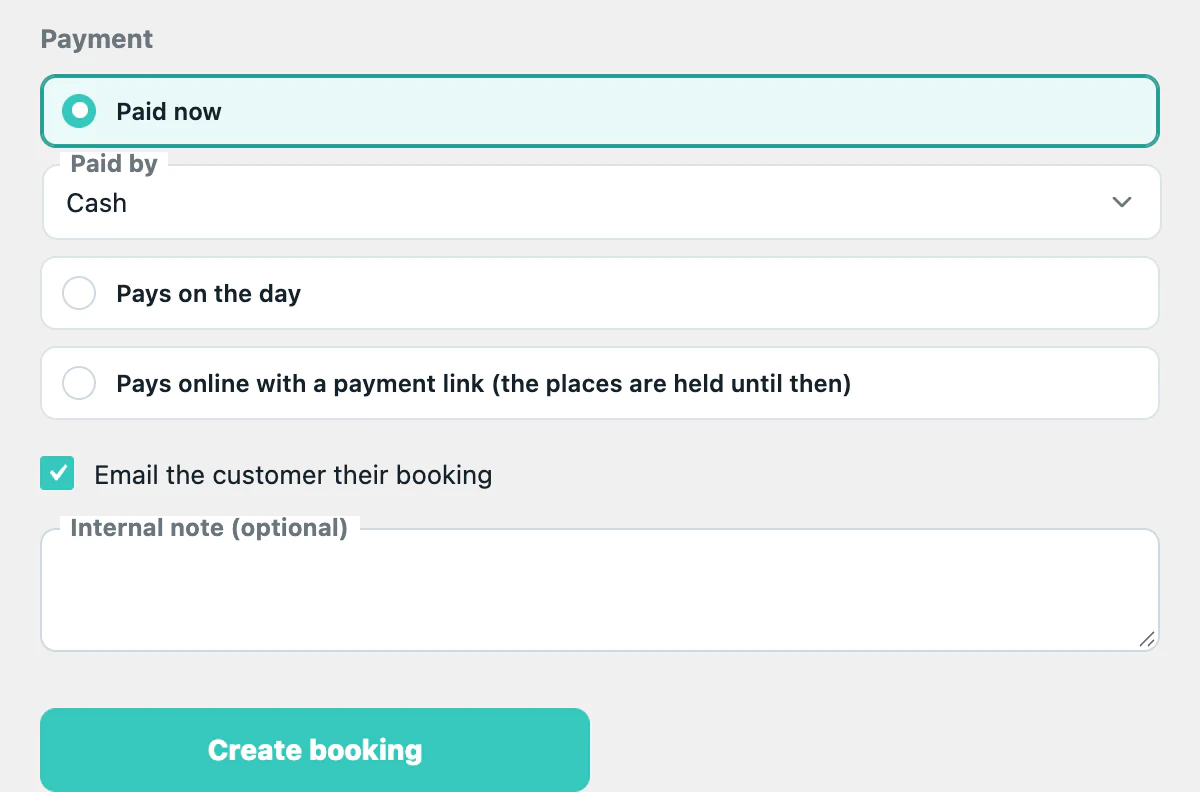
| Choice | What happens |
|---|---|
| Paid now | The order is marked as paid by cash, card, bank transfer or in person. The booking is confirmed. |
| Pays on the day | Nothing is charged now. The whole amount, pickup fee included, shows as the balance to collect on the manifest, in Tour Bookings and on the Dashboard. Mark it paid on the day as with any deposit. |
| Pays online with a payment link | The order waits for payment and the places stay held until it is paid or you cancel it. The customer receives the link by email, and the screen shows it to copy into WhatsApp or a text message. |
Tick Email the customer their booking to send the usual confirmation, with its calendar file, or the payment link. Leave it unticked for a customer standing in front of you.
The Internal note goes on the order, with your name, for the rest of the team.
After booking
The booking is an order like any other: it appears in Tour Bookings, the Daily Manifest, Reports, the staff calendar and the reminders. Your shop does not send its "new order" email for bookings your team makes.