
Showcases
A showcase is a 3D model used as page decoration: transparent background, no controls, turning on its own or as the visitor scrolls. Set them up under 3D Print, Showcase, then place them anywhere with the shortcode.
Setting one up
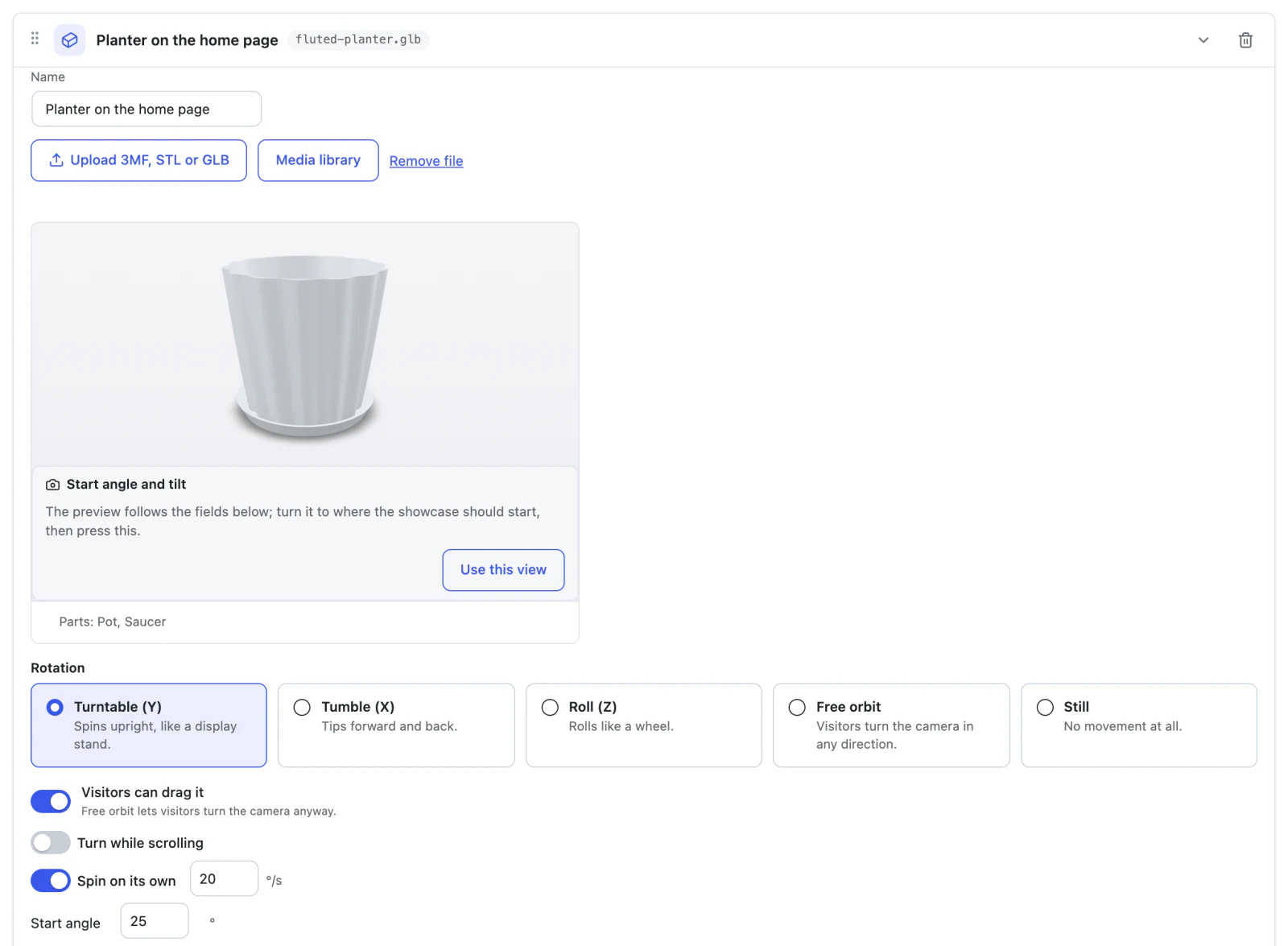
Each showcase has an id (what the shortcode uses), a model, a colour, and how it moves:
- Spin: turntable (Y), tumble (X), roll (Z), free (the visitor orbits the camera), or still.
- Auto-rotate: degrees per second of continuous spin. It pauses when the pointer is over it and when it is off screen.
- Scroll: degrees turned while the element crosses the viewport. Negative turns the other way.
- Start angle and tilt: where the model faces before any movement. Turn the preview to the angle you want and press Use this view to fill both from it.
- Drag: whether visitors can turn it themselves.
Placing it
[fc3d_showcase id="hero"]Every setting can be overridden per placement:
| Attribute | Meaning |
|---|---|
id | Which showcase (required) |
spin | y, x, z, free or none |
scroll | Degrees per viewport crossing |
auto_rotate | Degrees per second |
drag | 1 or 0 |
height | Height in pixels; width takes any CSS width |
background | Any CSS colour; empty is transparent |
class | An extra class on the wrapper for your own styling |
[fc3d_showcase id="hero" spin="x" scroll="540" height="300" background="transparent"]If it does not move
Open the page with ?fc3d_debug=1 and look at the browser console: the showcase prints what it decided (rotation mode, whether the model is centred, reduced motion, the frame it is using). A visitor who has asked their system for reduced motion sees the model still, on purpose.