
Product order
FluentCart, Product order puts your products in the order you want, for every place that lists them. It sits beside All Products in FluentCart's menu, including FluentHub's Commerce section when you use FluentHub's unified screen.
Ordering your products
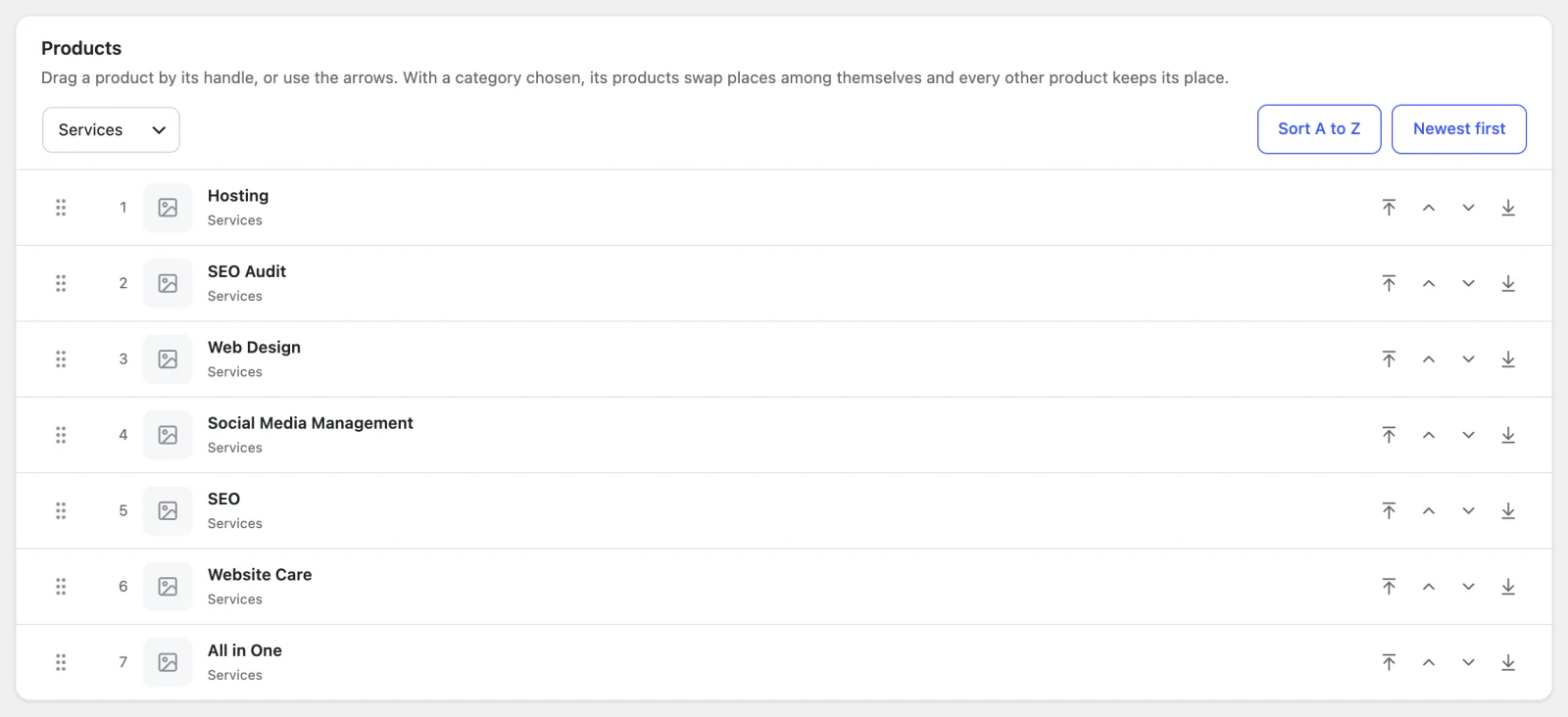
Drag a product up or down by its handle (the six dots), with the mouse or a finger. The arrows beside each product move it one place, or to the top or bottom. With the handle focused, the arrow keys move it too, and Home and End send it to the top and bottom. Sort A to Z and Newest first give you a starting point. Nothing changes on the site until you click Save order.
Choose a category to order just its products: they swap the places they hold, and every other product stays where it is.
Using the order on your site
The order is saved as WordPress's own menu order, so anything that lists products can use it:
- In Bricks, Elementor or another builder, set the products query loop to sort by Menu order, ascending.
- In code:
new WP_Query( [ 'post_type' => 'fluent-products', 'orderby' => 'menu_order', 'order' => 'ASC' ] ).
Options
- Previous and next product links follow this order: the links a product page shows to the product before and after it (WordPress's previous and next post, which most builders' post navigation elements use) follow your order instead of the date. Off by default.
- New products go to the end of the list: a product you add later appears last, instead of first, until you place it. On by default.
The screen is shared by our FluentCart plugins: with more than one installed, it still appears once, and the order is the same for all of them.